
Polished concept — the experience we're aiming for.
Step 1 of 5
Welcome
0% protected
Step 1 of 5
Backups: not set up
Encryption On Vault Connected Fully Protected
About 2 minutes

Let's get your backups safely offsite.

UpdraftVault is your secure, encrypted home for offsite backups — built on enterprise cloud storage with eleven‑nines (99.999999999%) reliability. Your data goes straight from your site to the cloud, fully encrypted. We'll connect it in five quick steps.

Bank-grade encryption
Direct site-to-cloud
In your WordPress sidebar

Open your UpdraftPlus settings

In the WordPress admin menu on the left, click UpdraftPlus (just below Settings), then open the Settings tab. That's where you'll choose where backups are stored.

WordPress menu UpdraftPlus Settings tab
Dashboard
Posts
Media
Plugins
Users
Tools
Settings
UpdraftPlus
WP-Optimize
UpdraftPlus Backup/Restore
Backup / Restore
Settings
Advanced Tools
Choose your remote storage…
Choose your remote storage

Choose UpdraftVault as your storage

Under Choose your remote storage, select UpdraftVault. That's the encrypted destination your backups will be sent to.

UpdraftVault selected
Tap the UpdraftVault tile to select it
D
Dropbox
G
Google Drive
S3
Amazon S3
F
FTP
B
Backblaze
Your backups stay encrypted end-to-end, sent directly from your site.
Choose your remote storage

Select UpdraftVault

In the Settings tab, under Choose your remote storage, click the UpdraftVault icon so it becomes highlighted. This is the encrypted destination your backups are sent to.
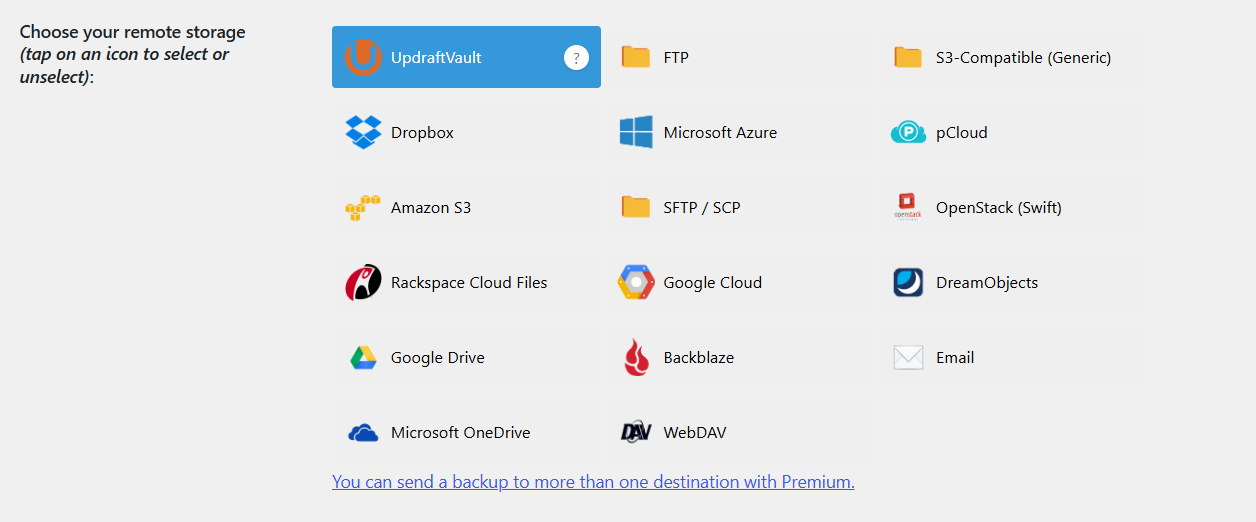
UpdraftPlus › SettingsWhat you'll see
UpdraftPlus remote storage grid with UpdraftVault highlighted
1Click the highlighted  UpdraftVault  tile (top-left).
Almost there

Connect your account

Enter your UpdraftPlus account email and password, then click Connect. This securely links your site to your Vault storage.

Encrypted connection — credentials are never stored here.
UpdraftVault connection
Connected!
Your site is now linked to UpdraftVault. You're ready to run your first backup.
Link your account

Connect your Vault account

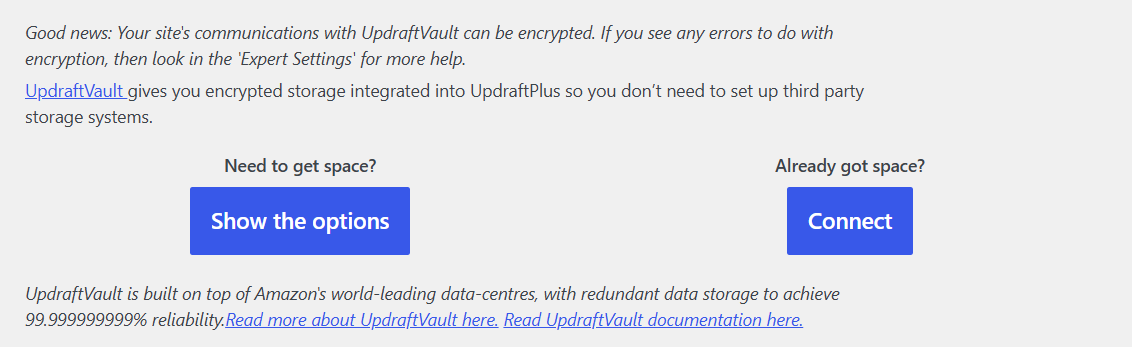
After selecting UpdraftVault, click Connect under “Already got space?”, then enter your teamupdraft.com email and password and click Connect.
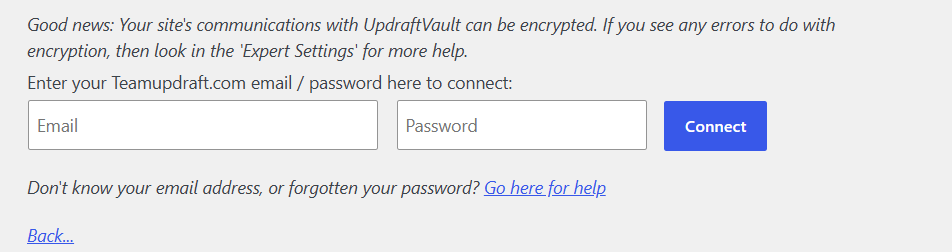
When you're done, scroll down and click Save changes to store the connection.
UpdraftVault panelStep A
UpdraftVault panel with Show the options and Connect buttons
1Under “Already got space?”, click  Connect .
Enter your credentialsStep B
Email and password fields with a Connect button
2Type your  email  and  password , then click  Connect .
The final step

Run your first backup

Click Backup Now with Send this backup to remote storage checked. We'll send an encrypted copy straight to UpdraftVault.

Manage your storage quota anytime from My Account on teamupdraft.com.
Send this backup to remote storage
Backing up… 0%
Database
Plugins
Themes
Uploads & media
Sending to UpdraftVault
You're all set!
Your first backup is safely stored offsite in UpdraftVault, encrypted and ready whenever you need it.
Congratulations — you're connected!
Your site is now linked to UpdraftVault. From here, your manual and scheduled backups are sent automatically — encrypted — straight to your Vault. There's nothing else to set up.
Scheduled backups → Vault
Manual backups → Vault
Encrypted end-to-end
Manage your storage quota anytime from My Account on teamupdraft.com.