
Let's get your backups safely offsite.
UpdraftVault is your secure, encrypted home for offsite backups — built on enterprise cloud storage with eleven‑nines (99.999999999%) reliability. Your data goes straight from your site to the cloud, fully encrypted. We'll connect it in five quick steps.
Open your UpdraftPlus settings
In the WordPress admin menu on the left, click UpdraftPlus (just below Settings), then open the Settings tab. That's where you'll choose where backups are stored.
Choose UpdraftVault as your storage
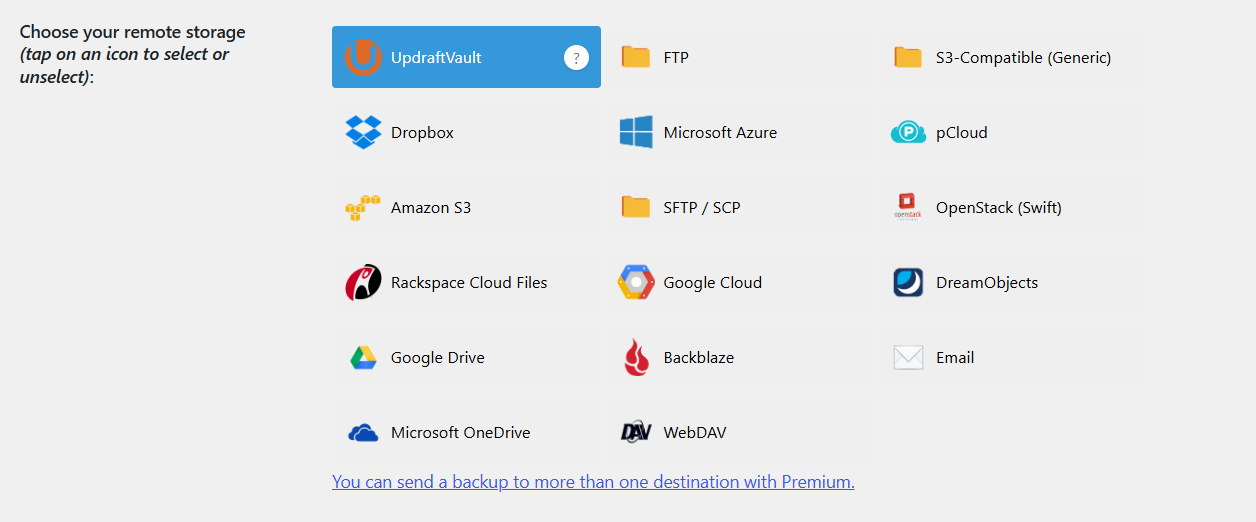
Under Choose your remote storage, select UpdraftVault. That's the encrypted destination your backups will be sent to.
Select UpdraftVault
In the Settings tab, under Choose your remote storage, click the UpdraftVault icon so it becomes highlighted. This is the encrypted destination your backups are sent to.
Connect your account
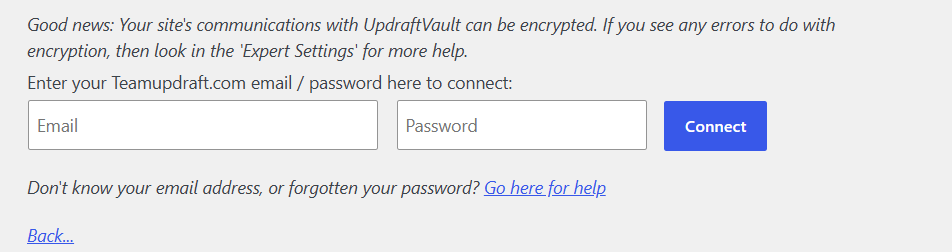
Enter your UpdraftPlus account email and password, then click Connect. This securely links your site to your Vault storage.
Connect your Vault account
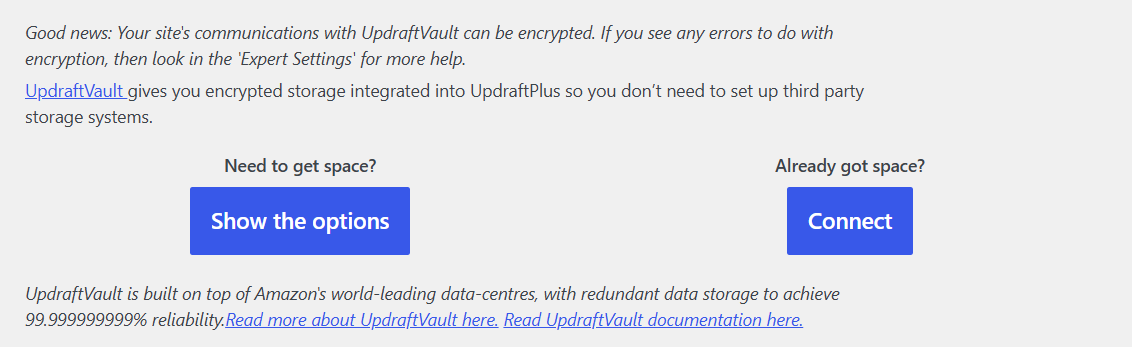
After selecting UpdraftVault, click Connect under “Already got space?”, then enter your teamupdraft.com email and password and click Connect.
Run your first backup
Click Backup Now with Send this backup to remote storage checked. We'll send an encrypted copy straight to UpdraftVault.